All student and employee accounts require the use of Multi-Factor Authentication for better security. We highly recommend using the Microsoft Authenticator app's push notifications, as they are the easiest method to use.
Note: To update your MFA settings, you require at least one method already setup on your account. Otherwise, you'll need to contact the Helpdesk.
Note: The phone number as an MFA option will no longer be supported in early 2027. Please avoid setting up or depending on this method. More information can be found here.
Viewing MFA Settings
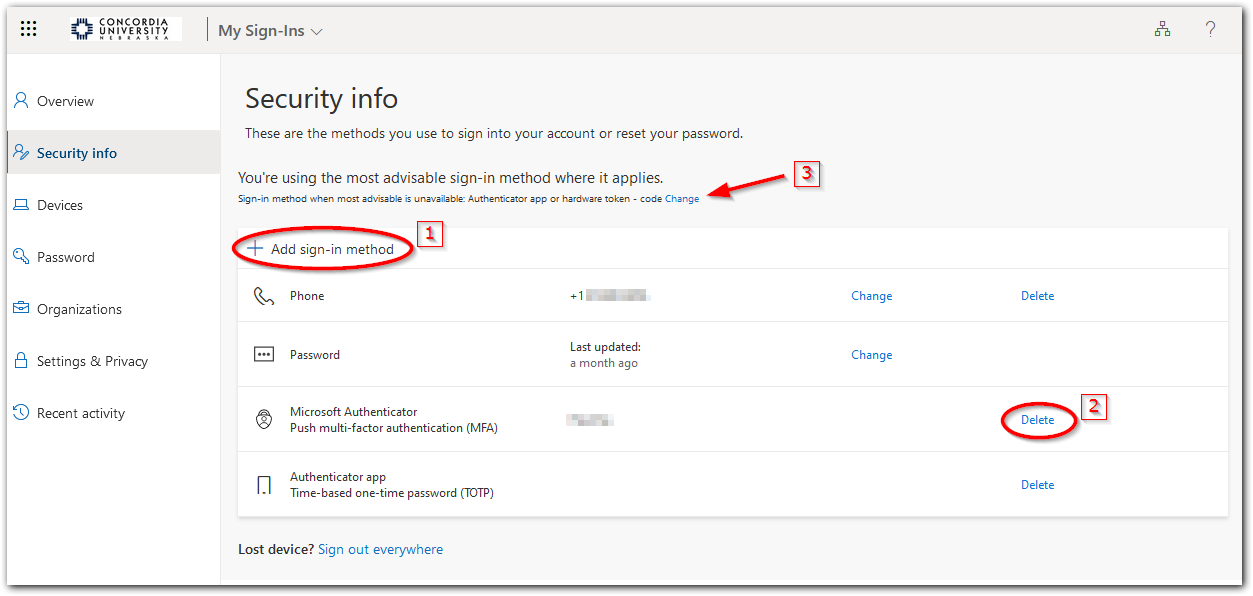
Go to the Security Info page and sign in with your CUNE email. If prompted select "Work or school account".
Here you can:
- Add authentication methods
- Delete authentication methods
- Change the default method used when Microsoft cannot automatically determine the best method
Adding an Authentication Method
When adding a sign-in method, select one of the options displayed. We highly recommend setting up Microsoft Authenticator and one or more passkeys. Once selected, click Next and follow the instructions to complete the setup.
Note: You can set up multiple passkeys (one per device, per account) and the Microsoft Authenticator.
See these detailed instructions to add the Microsoft Authenticator app.
MFA Options
-
Passkey: Creates a "digital key" that you authorize your device to use by entering your device's PIN, fingerprint, or FaceID. A passkey can be stored in your smartphone, laptop, password manager, or on a physical security key, such as YubiKey.
-
Passkey in Microsoft Authenticator: Creates a device bound Passkey within the Microsoft Authenticator app on your smartphone.
-
Microsoft Authenticator: Sends a push notification to your smartphone, where you type in the two digits displayed on the device you're signing in on. (i.e. you sign in on a laptop which displays two digits, you get a notification on your phone and type in the two digits displayed on the laptop)
-
Hardware Token: This is a 6 digit number that rotates every 30-60 seconds and is stored/displayed on a physical card or device. When signing in, you must type in the code displayed.

Changing the Default MFA Method
After you have changed your MFA settings you may want to update your default method.
-
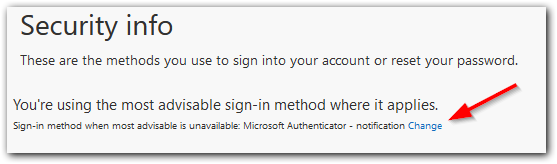
Click Change from the Security Info page
-
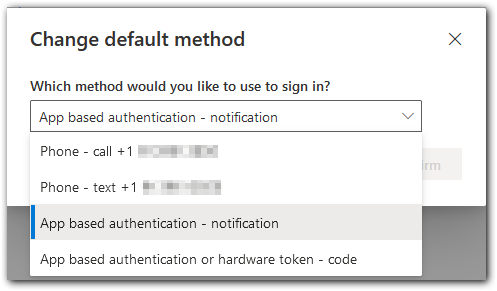
Select the default method from the drop-down menu
More information may be found in Microsoft's documentation: About Microsoft Authenticator | Microsoft Support